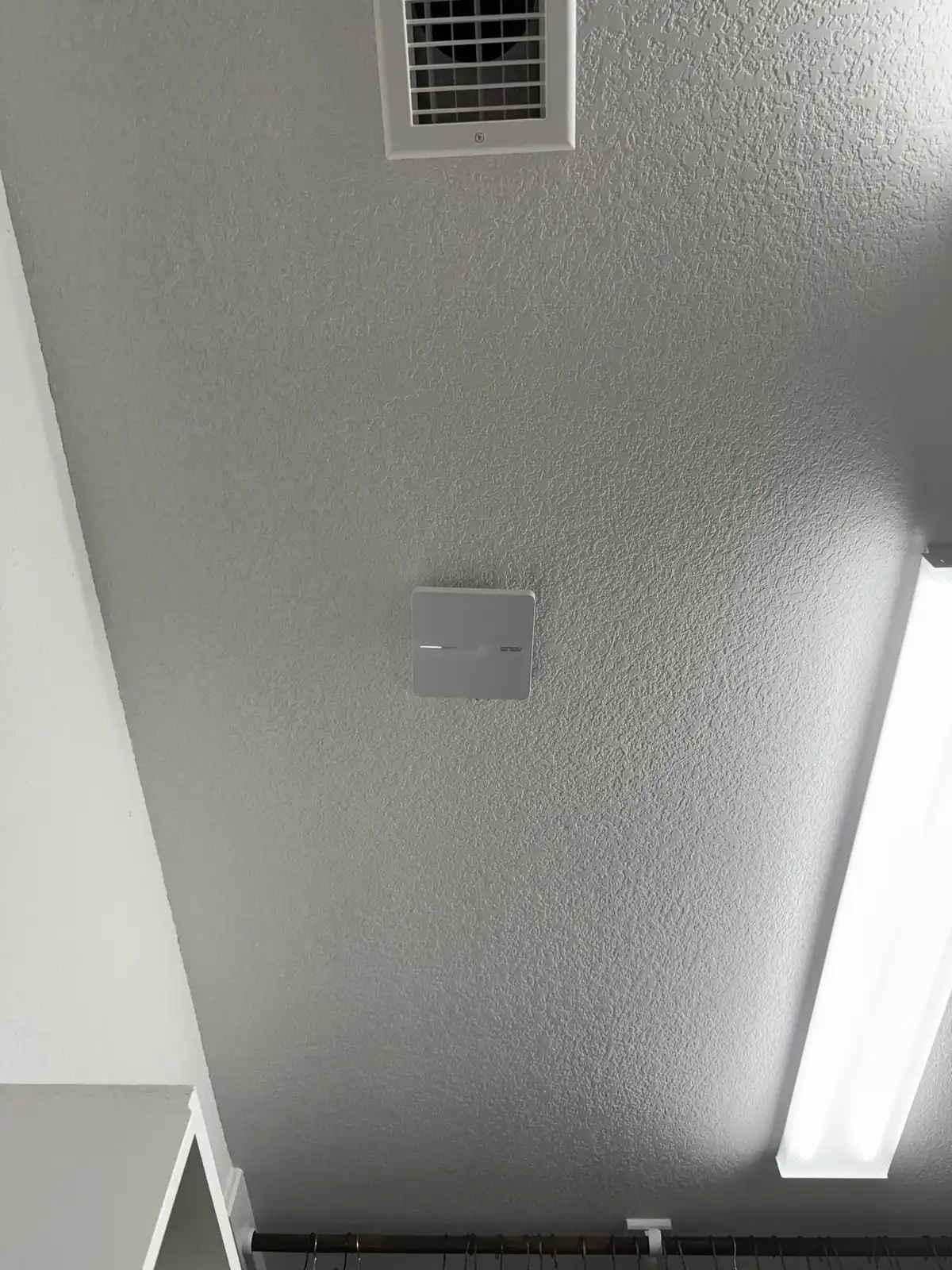
The best WiFi setup for most homes in 2026 is a WiFi 6 mesh system with 2-3 nodes — it covers 1,000 to 2,500 square feet reliably, costs $150-$400, and handles 15-25 devices without dropping connections. For homes over 3,000 square feet, wired access points with ethernet backhaul outperform every mesh system on the market.
After installing WiFi systems in over 200 DFW homes, we’ve found that 70% of WiFi problems come from placement, not equipment. A $150 mesh system in the right spots beats a $500 router in a closet. Below, we break down every option by home size, budget, and actual performance.
Understanding Your WiFi Needs
Before buying anything, answer these questions:
How big is your home?
- Under 1,000 sq ft — a single router handles this easily
- 1,000 to 2,500 sq ft — mesh system or well-placed single router
- 2,500 to 4,000 sq ft — mesh system with 3+ nodes
- Over 4,000 sq ft — wired access points for best results
How many devices connect to your WiFi?
Most people underestimate this. Count everything: phones, laptops, tablets, smart TVs, streaming sticks, smart speakers, security cameras, smart thermostats, smart lights, gaming consoles, printers. A typical household in 2026 has 15 to 25 connected devices.
What do you do on the internet?
| Usage | Minimum Speed Needed | WiFi Priority |
|---|---|---|
| Web browsing and email | 25 Mbps | Basic coverage |
| Streaming video (4K) | 25 Mbps per stream | Consistent coverage in living areas |
| Video conferencing (Zoom, Teams) | 10 Mbps up and down | Low latency, reliable connection |
| Online gaming | 25 Mbps, low latency | Low latency more important than raw speed |
| Large file downloads and uploads | 100+ Mbps | High throughput |
| Security cameras (4+ cameras) | 10 Mbps upload per camera | Always-on reliable connection |
WiFi Setup Options Ranked
Option 1: Single Router — Best for Small Spaces
Best for: Apartments and small homes under 1,000 sq ft
A single quality router placed in the center of a small home provides everything you need. There is no reason to buy a mesh system for a one-bedroom apartment.
What to buy: A WiFi 6 router in the $80 to $150 range. Look for:
- WiFi 6 (802.11ax) at minimum
- At least 4 ethernet ports
- Dual-band (2.4 GHz and 5 GHz)
- Easy app-based setup
Good options: TP-Link Archer AX55, ASUS RT-AX58U, Netgear RAX43
Setup tips:
- Place it centrally, elevated, and out in the open
- Set separate names for 2.4 GHz and 5 GHz bands if you want to control which devices use which band
- Or enable band steering to let the router manage it automatically
- Change the default admin password immediately
Option 2: Mesh WiFi System — Best for Most Homes
Best for: Homes between 1,000 and 3,000 sq ft, multi-story homes, homes with WiFi dead zones
Mesh systems are the single biggest improvement most people can make to their home WiFi. Instead of one router trying to cover your entire home, multiple nodes work together to create seamless coverage everywhere.
Key advantages over range extenders:
- One network name — your devices switch between nodes automatically
- Full speed at each node (range extenders cut speed in half)
- Self-optimizing — nodes find the best channels and connections
- Easy management through a smartphone app
Recommended mesh systems:
| System | Coverage | WiFi Standard | Best Feature | Price Range |
|---|---|---|---|---|
| Google Nest WiFi Pro (3-pack) | Up to 6,600 sq ft | WiFi 6E | Simplest setup and app | $250-$350 |
| Amazon Eero Pro 6E (3-pack) | Up to 6,000 sq ft | WiFi 6E | Alexa integration, reliable | $300-$400 |
| TP-Link Deco XE75 (3-pack) | Up to 5,500 sq ft | WiFi 6E | Best value for performance | $200-$300 |
| Netgear Orbi 960 (2-pack) | Up to 5,000 sq ft | WiFi 6E | Fastest speeds, dedicated backhaul | $400-$600 |
Placement tips for mesh nodes:
- Place the main node where your modem is
- Space additional nodes evenly throughout your home
- Each node should be within 30 to 40 feet of the next node
- Place one node on each floor in multi-story homes
- Avoid placing nodes near metal objects or inside cabinets
Option 3: Wired Access Points — Best Performance Possible
Best for: Large homes over 3,000 sq ft, home offices, households with 30+ devices, anyone who wants maximum performance
This is the setup that businesses, hotels, and IT professionals use in their own homes. Ethernet cables connect each access point directly to a central switch, so every access point delivers full network speed with zero wireless signal loss between nodes.
What you need:
- A quality router (or your ISP modem/router)
- A network switch (8-port or 16-port PoE switch)
- Ethernet cable run to each access point location
- Ceiling or wall-mounted access points
Recommended access points:
- TP-Link Omada EAP670 — excellent performance, easy management, great value
- Ubiquiti U6 Pro — industry standard, clean interface, reliable
- TP-Link Omada EAP610 — budget-friendly WiFi 6 option
Why wired backhaul wins:
| Feature | Mesh (Wireless) | Wired Access Points |
|---|---|---|
| Speed between nodes | Reduced each hop | Full speed everywhere |
| Latency | Higher, variable | Low, consistent |
| Reliability | Good | Excellent |
| Max devices supported | 30-50 | 50-100+ |
| Setup difficulty | Easy (app-based) | Moderate (requires cable runs) |
| Cost | $200-$600 | $300-$800+ |
The tradeoff is complexity. Running ethernet cables through walls requires drilling, fishing cables, and potentially patching drywall. This is where professional installation pays for itself.
Router Placement Tips
Regardless of which setup you choose, placement matters more than most people realize.
The ideal location:
- Center of your home — not in a corner or at the edge
- Elevated — on a shelf, table, or wall-mounted, not on the floor
- Open air — not inside a cabinet, closet, or entertainment center
- Away from interference — at least 3 feet from microwaves, baby monitors, and Bluetooth devices
- Away from metal and water — metal reflects WiFi signal, water absorbs it
Common mistakes:
- Leaving the router wherever the ISP tech installed it (usually the worst spot)
- Hiding it behind the TV (electronics generate interference)
- Putting it on the floor (signal radiates outward and slightly downward)
- Placing it in a basement (signal has to pass through the floor to reach the rest of the house)
WiFi 6 vs WiFi 6E vs WiFi 7 — Which Do You Need?
| Standard | Frequency Bands | Max Speed | Best For | Available Since |
|---|---|---|---|---|
| WiFi 6 (802.11ax) | 2.4 GHz, 5 GHz | 9.6 Gbps | Most homes, great value | 2020 |
| WiFi 6E | 2.4 GHz, 5 GHz, 6 GHz | 9.6 Gbps | Congested areas, many devices | 2022 |
| WiFi 7 (802.11be) | 2.4 GHz, 5 GHz, 6 GHz | 46 Gbps | Future-proofing, heavy usage | 2024 |
What most people should buy: WiFi 6 or WiFi 6E.
WiFi 6 is mature, widely supported, and significantly faster than older standards. Every device you buy today supports it. Routers and mesh systems with WiFi 6 offer the best value.
WiFi 6E adds the 6 GHz band, which is less congested and offers more channels. This matters most in apartments and dense neighborhoods where dozens of neighboring networks compete for the same airspace.
WiFi 7 is the newest standard with the highest theoretical speeds. However, very few devices support it yet, and the routers are expensive. Unless you want to future-proof for 3 to 5 years and have the budget, WiFi 6E is the better value today.
The honest truth: Your internet plan speed is the bottleneck, not your WiFi standard. If you are paying for 300 Mbps internet, even a WiFi 5 router can deliver that speed to nearby devices. The newer standards matter more for handling many simultaneous devices and reducing congestion.
DFW Internet Provider Tips
Your WiFi setup is only as good as the internet connection feeding it. Here are practical tips for DFW residents:
Match your speed plan to your actual usage:
- 1 to 3 people, basic browsing and streaming — 100 to 300 Mbps
- 3 to 5 people, streaming, gaming, work from home — 300 to 500 Mbps
- 5+ people or heavy usage with cameras and smart home — 500 Mbps to 1 Gbps
Stop renting your ISP’s router. Most ISPs charge $10 to $15 per month for their gateway device. Buy your own modem and router — it pays for itself within a year and you get better hardware with more control over your settings.
Check your actual speed regularly. Run a speed test at speedtest.net monthly. If you are consistently getting less than 80% of your plan speed over ethernet, call your provider.
Fiber is worth it if available. AT&T Fiber, Frontier Fiber, and other fiber providers in DFW offer symmetric upload and download speeds, which is a big deal for video conferencing, cloud backups, and security cameras. Cable internet (like Spectrum) typically has much slower upload speeds.
Professional WiFi Setup vs DIY
DIY makes sense when:
- You are setting up a single router in a small home
- You are using a plug-and-play mesh system
- You are comfortable logging into router admin settings
- Your home does not have persistent dead zone issues
Professional setup makes sense when:
- You need ethernet cable run through walls for wired backhaul
- Your home has persistent dead zones that a basic mesh system does not solve
- You want access points properly mounted and configured
- You need network segmentation (separate networks for work, guests, and IoT devices)
- You have a complex setup with security cameras, smart home systems, and a home office
- You have tried troubleshooting yourself and still have problems
The difference between a DIY mesh setup and a professionally configured network is like the difference between plugging in a soundbar and having a home theater installed. Both work, but one is optimized for your specific space.
Get Your Home WiFi Set Up Right
Techrepair DFW provides WiFi and networking setup throughout Dallas-Fort Worth. We come to your home, assess your layout and usage needs, and install the right solution — whether that is a properly configured mesh system or wired access points with full coverage.
We handle equipment selection, optimal placement, configuration, and testing so every room in your home gets fast, reliable WiFi.
Related: How to Fix WiFi Problems at Home | WiFi vs Network: What’s the Difference?
Call 469-293-2893 to schedule your home WiFi setup.
Tried the steps and still stuck?
Tell us what's happening and a DFW technician will get back to you within 30 minutes during business hours. We come to your home or office, same day.