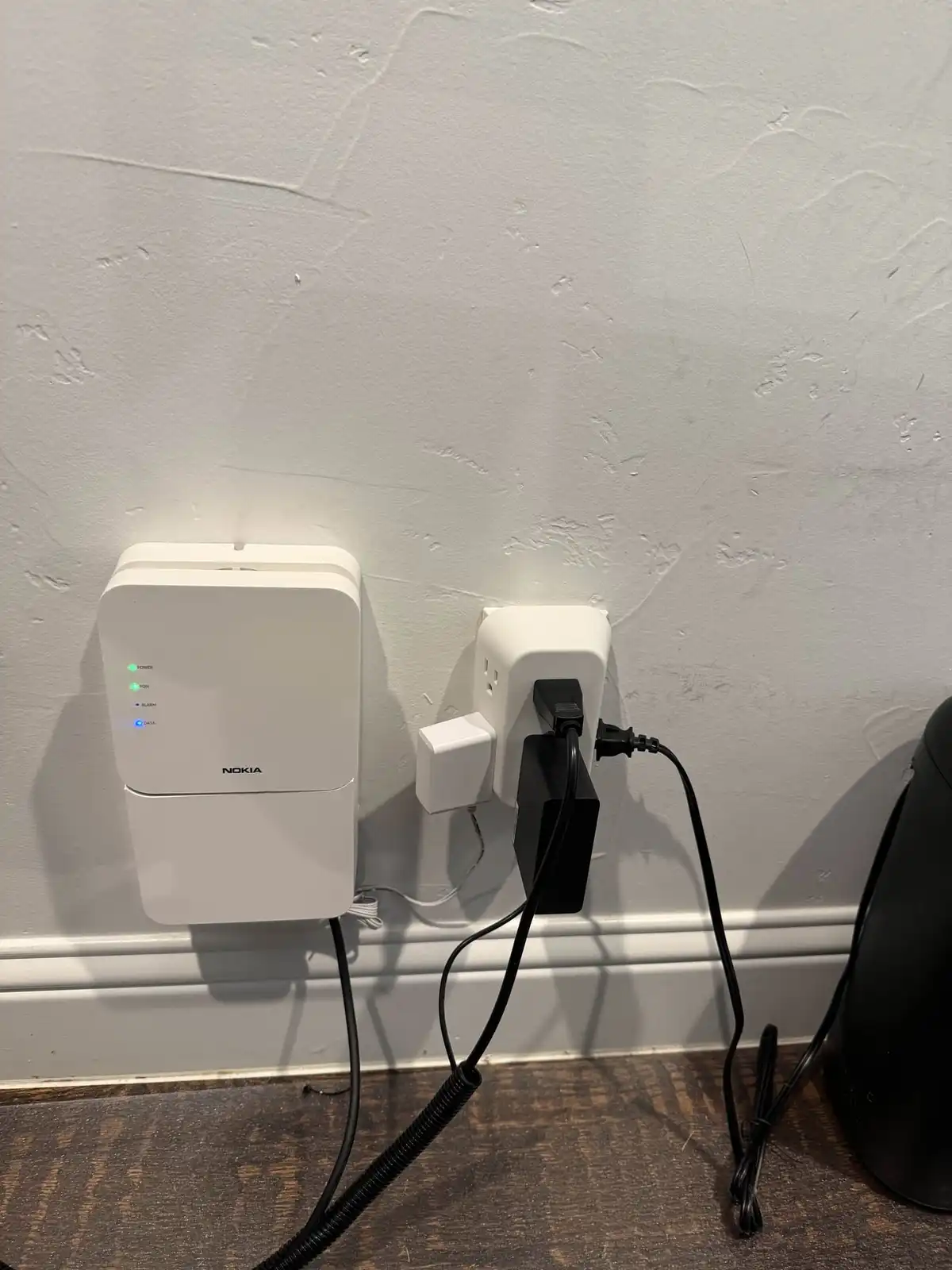
A network is your entire system of connected devices — computers, phones, printers, smart TVs, and everything plugged into your router. WiFi is just one way to connect to that network, using radio waves instead of ethernet cables. When your internet stops working, knowing which layer is broken (ISP, network, WiFi, or device) cuts troubleshooting time in half.
About 40% of the “internet not working” calls we get in DFW turn out to be WiFi-specific problems — the network is fine, but the wireless signal is the issue. Another 30% are router/network problems, 20% are ISP outages, and 10% are device-specific. Most people assume their “WiFi is down” when it’s actually something else entirely. Here’s how to tell the difference.
The Simple Explanation
Your network is everything connected together — your router, modem, computers, phones, smart TV, printer, security cameras, and smart home devices. It is the entire system.
WiFi is just one way devices connect to your network. Instead of using a physical ethernet cable, WiFi uses radio waves to transmit data wirelessly.
Think of it like a house. The network is the entire house. WiFi is one of the doors into the house. Ethernet is another door. Both get you inside the same house, but they work differently.
Why This Matters for Troubleshooting
When your internet stops working, the problem could be:
- Your internet service (the ISP connection is down — nothing you can fix)
- Your network (the router crashed or is misconfigured)
- Your WiFi (the wireless signal specifically is the issue)
- Your device (the problem is with one specific phone or computer)
Knowing which layer has the problem saves time:
| Symptom | Problem Layer | Quick Fix |
|---|---|---|
| Nothing connects, wired or wireless | Internet service or router | Restart modem and router |
| WiFi devices lose connection but wired works | WiFi | Restart router, check channel |
| One device cannot connect but others can | Device | Forget and reconnect to network |
| Slow speeds everywhere | Internet service or router | Speed test wired vs wireless |
| Slow WiFi but fast wired | WiFi congestion or range | Move router, change channel |
| Cannot reach one website | DNS or website issue | Try different DNS server |
Common WiFi Problems and Fixes
WiFi Dead Zones
Problem: Some rooms have weak or no WiFi signal.
Cause: Walls, floors, appliances, and distance weaken the signal. Concrete, brick, and metal are especially bad for WiFi penetration.
Fix: Move your router to a central location. If that is not enough, a mesh WiFi system places multiple access points throughout your home to eliminate dead zones. See our guide on the best WiFi setup for home for mesh system recommendations.
Slow WiFi Speeds
Problem: Internet feels slow even though you are paying for fast service.
Cause: WiFi congestion from neighbors on the same channel, too many devices, outdated router, or interference from microwaves, baby monitors, or Bluetooth devices.
Fix: Log into your router and switch to a less congested channel. Use the 5 GHz band for devices near the router and 2.4 GHz for devices further away. If your router is over 4 years old, upgrading to WiFi 6 makes a significant difference.
Devices Keep Disconnecting
Problem: Phones, laptops, or smart home devices drop off the network randomly.
Cause: Router firmware bugs, IP address conflicts, too many devices, or the router’s DHCP pool is exhausted.
Fix: Update router firmware, restart the router to clear the connection table, and ensure your router supports enough simultaneous connections for your device count.
Printer Not Found on Network
Problem: Your computer cannot find the wireless printer.
Cause: The printer and computer are on different network bands (one on 2.4 GHz, one on 5 GHz) or the printer’s WiFi dropped.
Fix: Make sure both devices are on the same network name. Restart the printer’s WiFi connection. Many printers have a WiFi setup button or menu to reconnect.
Setting Up a Home Network That Works
A solid home network setup follows these principles:
Router placement matters more than router cost. A mid-range router in the center of your home outperforms an expensive router hidden in a closet. Place it on a high shelf with open air around it, away from walls and metal objects.
Use wired connections for stationary devices. Desktops, smart TVs, gaming consoles, and printers should use ethernet whenever possible. This frees up WiFi bandwidth for mobile devices.
Separate your IoT devices. Smart home devices, security cameras, and IoT gadgets should be on a separate network (most modern routers support guest networks) to reduce congestion and improve security.
Update your router firmware. Manufacturers release updates that fix bugs, improve performance, and patch security vulnerabilities. Check for updates every few months.
When to Call a Professional
For a more detailed walkthrough, check out our guide on how to fix WiFi problems at home. If you have tried the troubleshooting steps above and still have WiFi issues, professional WiFi and network setup can solve problems that DIY cannot:
- Whole-home mesh network installation and configuration
- Business network setup with access points, VLANs, and security
- Persistent dead zones that a single router cannot cover
- Network security hardening
- Smart home device integration and optimization
Get Professional WiFi Setup in DFW
Techrepair DFW provides WiFi and network services throughout Dallas-Fort Worth. We come to your home or office, assess your space, and set up a network that covers every room with strong, reliable WiFi.
Tried the steps and still stuck?
Tell us what's happening and a DFW technician will get back to you within 30 minutes during business hours. We come to your home or office, same day.