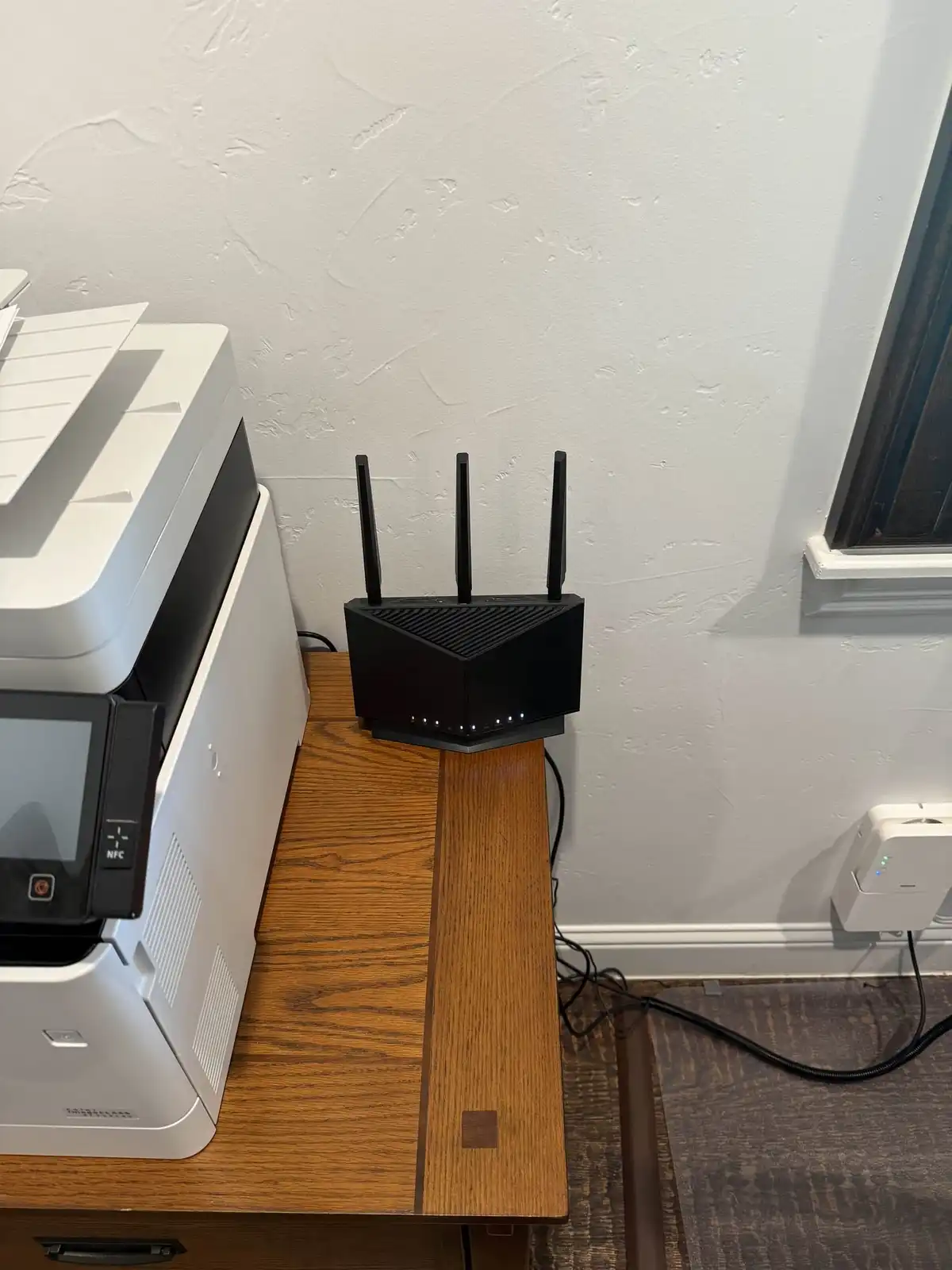
Most home WiFi problems come down to a handful of common causes. Before you call your internet provider or buy a new router, work through this guide. You can fix the majority of WiFi issues yourself in under 30 minutes.
Common WiFi Problems: Causes, Fixes, and When to Call a Pro
| Problem | Common Cause | DIY Fix | When to Call a Pro |
|---|---|---|---|
| WiFi keeps disconnecting | Router overheating, firmware bugs, too many devices | Restart router, update firmware, move to ventilated area | Disconnections continue after firmware update and router restart |
| Slow WiFi speed | Channel congestion, outdated router, too many devices on one band | Switch channels, use 5 GHz for nearby devices, disconnect unused devices | Wired speed matches your plan but WiFi is consistently below 50% of that speed |
| WiFi does not reach certain rooms | Router placement, wall materials, home size | Move router to center of home, consider mesh system | Home is over 2,000 sq ft or has concrete/brick interior walls |
| Connected but no internet | DNS issues, IP conflict, ISP outage | Restart modem and router, flush DNS, check ISP status page | Problem persists after full power cycle and DNS flush |
| Device will not connect to WiFi | Saved password mismatch, driver issue, MAC filtering | Forget network and reconnect, update WiFi driver | Multiple devices cannot connect after password verification |
| WiFi password not working | Password was changed, caps lock, special characters | Verify password on router admin page, re-enter carefully | Cannot access router admin panel to verify password |
Step 1: Restart Your Router and Modem
This solves more WiFi problems than any other fix. A proper power cycle clears cached data, resets connections, and forces the router to find the best wireless channel.
The right way to restart:
- Unplug your modem from power
- Unplug your router from power (if separate from modem)
- Wait 30 seconds — this is important, do not skip it
- Plug the modem back in and wait 2 minutes
- Plug the router back in and wait 2 minutes
- Test your connection
If your ISP gave you a combined modem/router (gateway), just unplug that single device.
Step 2: Figure Out Where the Problem Is
Before fixing anything, narrow down the issue:
Test on multiple devices. If your laptop cannot connect but your phone works fine, the problem is your laptop — not your WiFi. Forget the network on the problem device and reconnect.
Test wired vs wireless. Plug a computer directly into your router with an ethernet cable. If wired internet works but WiFi does not, the problem is your wireless signal specifically.
Check your ISP. Visit your internet provider’s status page or call their support line. Outages happen, and no amount of router troubleshooting fixes an ISP outage.
Step 3: Optimize Router Placement
Where you put your router makes a huge difference. Most people leave it wherever the technician installed it, which is often the worst possible location.
Best placement:
- Center of your home
- Elevated on a shelf or table (not on the floor)
- Out in the open (not in a cabinet, closet, or behind the TV)
- Away from metal objects, mirrors, and fish tanks
- Away from microwaves, baby monitors, and cordless phones
Materials that block WiFi signal (from worst to least):
- Metal (filing cabinets, appliances, ductwork)
- Concrete and brick
- Plaster with wire mesh (common in older homes)
- Glass and mirrors
- Wood and drywall (minimal impact)
Step 4: Check for Interference
WiFi uses radio frequencies that compete with other devices and your neighbors’ networks.
Common interference sources:
- Microwaves (2.4 GHz, same frequency as WiFi)
- Baby monitors
- Cordless phones
- Bluetooth devices
- Neighboring WiFi networks (especially in apartments)
How to find a better channel:
Download a free WiFi analyzer app on your phone. It shows which channels are congested. Then log into your router and switch to a less crowded channel.
For 2.4 GHz, only use channels 1, 6, or 11 — these are the only channels that do not overlap with each other.
For 5 GHz, there are many more channels available and congestion is rarely a problem.
Step 5: Update Router Firmware
Router manufacturers release firmware updates that fix bugs, improve performance, and patch security holes. Many routers do not update automatically.
To update firmware:
- Find your router’s IP address (usually 192.168.0.1 or 192.168.1.1)
- Type it into your browser’s address bar
- Log in with your admin credentials (often printed on a sticker on the router)
- Navigate to Administration, System, or Firmware Update
- Check for updates and install if available
- The router will restart — wait 2 to 3 minutes
If you have never updated your router’s firmware, this single step can fix disconnection issues, slow speeds, and security vulnerabilities.
Step 6: Test Your Actual Speed
Run a speed test to see what you are actually getting versus what you are paying for.
- Go to speedtest.net or fast.com
- Run the test on a device connected by ethernet cable to your router
- Compare the result to your internet plan
Interpreting results:
| Wired Speed | WiFi Speed | What It Means |
|---|---|---|
| Matches your plan | Also good | No problems — enjoy |
| Matches your plan | Much slower | WiFi setup needs optimization |
| Slower than your plan | Slow | Contact your ISP — you are not getting what you pay for |
| Very slow on everything | Very slow | ISP issue or failing modem |
WiFi will always be somewhat slower than wired — that is normal. But it should be at least 50 to 70% of your wired speed for devices near the router.
Mesh WiFi vs Range Extenders vs Wired Backhaul
If your home has WiFi dead zones even after optimizing router placement, you need to extend coverage. For a full breakdown of routers, mesh systems, and wired access points, see our guide on the best WiFi setup for home. Here are your options:
Range Extenders ($20 to $60)
How they work: A range extender picks up your existing WiFi signal and rebroadcasts it.
Pros: Cheap, easy to set up.
Cons: They cut your speed in half because they receive and transmit on the same channel. They also create a separate network name, so your devices do not switch seamlessly as you move around your home.
Best for: Adding WiFi to one specific room on a budget.
Mesh WiFi Systems ($150 to $400)
How they work: Multiple mesh nodes communicate with each other to create one seamless network throughout your home. Your devices connect to the nearest node automatically.
Pros: Seamless coverage, single network name, easy setup via app, self-optimizing.
Cons: More expensive than a single router.
Best for: Most homes between 1,000 and 3,000 sq ft. This is the best option for the majority of households.
Recommended systems:
- Google Nest WiFi Pro — easy setup, great app, WiFi 6E
- Amazon Eero Pro 6E — reliable, integrates with Alexa
- TP-Link Deco XE75 — strong performance at a lower price
Wired Backhaul with Access Points ($300 to $800+)
How it works: Ethernet cables run from a central switch to access points mounted in different rooms. Each access point provides full-speed WiFi because it is wired directly to your network.
Pros: Best possible performance, no wireless signal loss between nodes, handles the most devices.
Cons: Requires running ethernet cables through walls, more complex setup, higher cost.
Best for: Large homes over 3,000 sq ft, home offices with video conferencing, households with 30+ connected devices, and anyone who wants the best possible WiFi performance.
DFW Internet Provider Considerations
Your WiFi performance starts with your internet connection. Here is what is available in the Dallas-Fort Worth area:
AT&T Fiber — Available in most of Dallas, Fort Worth, and surrounding suburbs. Offers speeds from 300 Mbps to 5 Gbps. Uses your own router or their included gateway.
Spectrum — Cable internet available across most of DFW. Speeds from 300 Mbps to 1 Gbps. No data caps.
Frontier Fiber — Available in parts of DFW after acquiring Verizon FiOS. Speeds up to 5 Gbps in some areas.
T-Mobile Home Internet — Fixed wireless option available in many DFW neighborhoods. $50 per month, no contract. Good option where fiber is not available, though speeds vary by location and congestion.
Tips regardless of provider:
- Buy your own router instead of renting the ISP’s equipment
- 300 Mbps is enough for most households with 5 to 10 devices
- If you work from home with video calls, prioritize upload speed (fiber offers symmetric speeds)
- Check your actual speed monthly to make sure you are getting what you pay for
When DIY Troubleshooting Is Not Enough
Some WiFi problems are beyond basic troubleshooting:
- Your home is large or has unusual construction (concrete walls, metal framing)
- You have tried everything above and still have dead zones
- You need a mesh system or access points installed and configured properly
- Your network needs to support a home office, security cameras, and smart home devices
- You want your WiFi optimized for maximum speed and coverage
Techrepair DFW provides WiFi and networking setup and troubleshooting throughout Dallas-Fort Worth. We come to your home, diagnose the issue, and optimize your network for full coverage. If you need a mesh system or access points, we handle the hardware selection, placement, and configuration so every room gets reliable signal.
Related: WiFi vs Network: What’s the Difference?
Call 469-293-2893 to schedule a home WiFi assessment.
Tried the steps and still stuck?
Tell us what's happening and a DFW technician will get back to you within 30 minutes during business hours. We come to your home or office, same day.